HighLevel Black Friday + Cyber Week, Nov 23 to Dec 6: 50% off your first 3 months, plus upgrade and add-on deals and a bonus from Yotomations.HighLevel 50% off for 3 months, Nov 23 to Dec 6.Find my deal
Use Audit Logs to See Who Changed What in a Sub-Account
Audit Logs record which user did what in your sub-account, so you can filter by person, module and action and export the trail when a client asks who changed something.
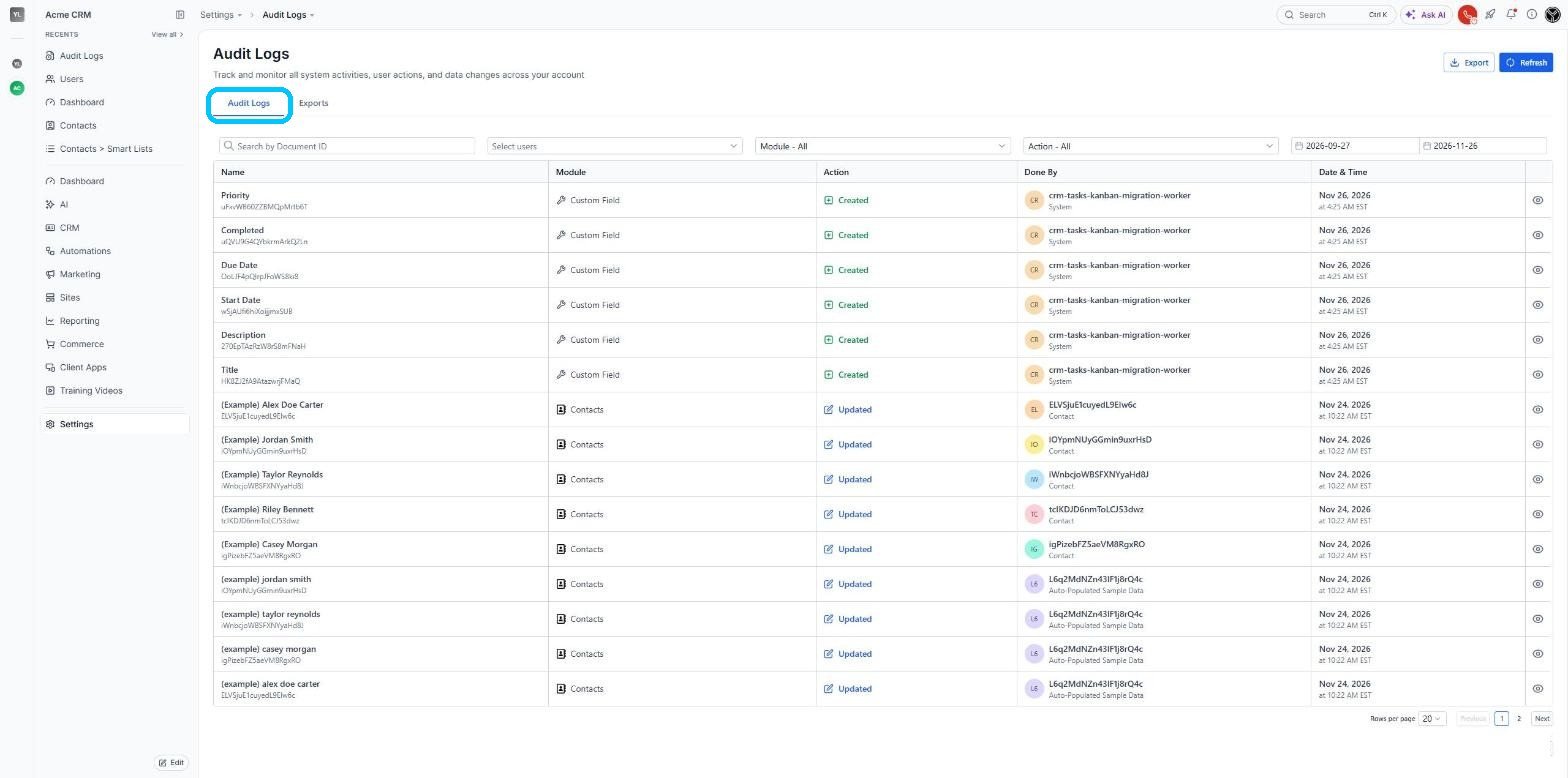
Audit Logs live in Settings and keep a record of user activity in the sub-account. You can filter the list by user, by module and by action, then export what you find. It is the answer to the question every admin eventually gets: who changed this?
It matters for compliance because the question usually arrives at a bad moment. A workflow starts texting outside the hours you set. A form stops collecting consent. A contact record is gone. Without a trail you are guessing, and you may end up blaming the wrong person. With Audit Logs you narrow the list to the user and the area, and you can see the action that was taken.
Set the filters one at a time. Start with the user you suspect, leave Module and Action on All, and read what comes back. Then narrow by module to cut the noise. If you need to share the findings with a client or keep them for your own file, use the export instead of taking screenshots.
One caveat: the log only helps if each person has their own login. If your whole team shares one user, every action shows the same name. Give each person their own user first, then use the log.
Prefer to watch? The 41-second version
Audit Logs in GoHighLevel let you filter by user, module, and action to find out who changed what, then export the trail.
Go to Settings > Audit Logs in the sub-account.GoHighLevel › Settings › Audit LogsYou are on Settings > Audit Logs, the page that lists user activity in the sub-account.
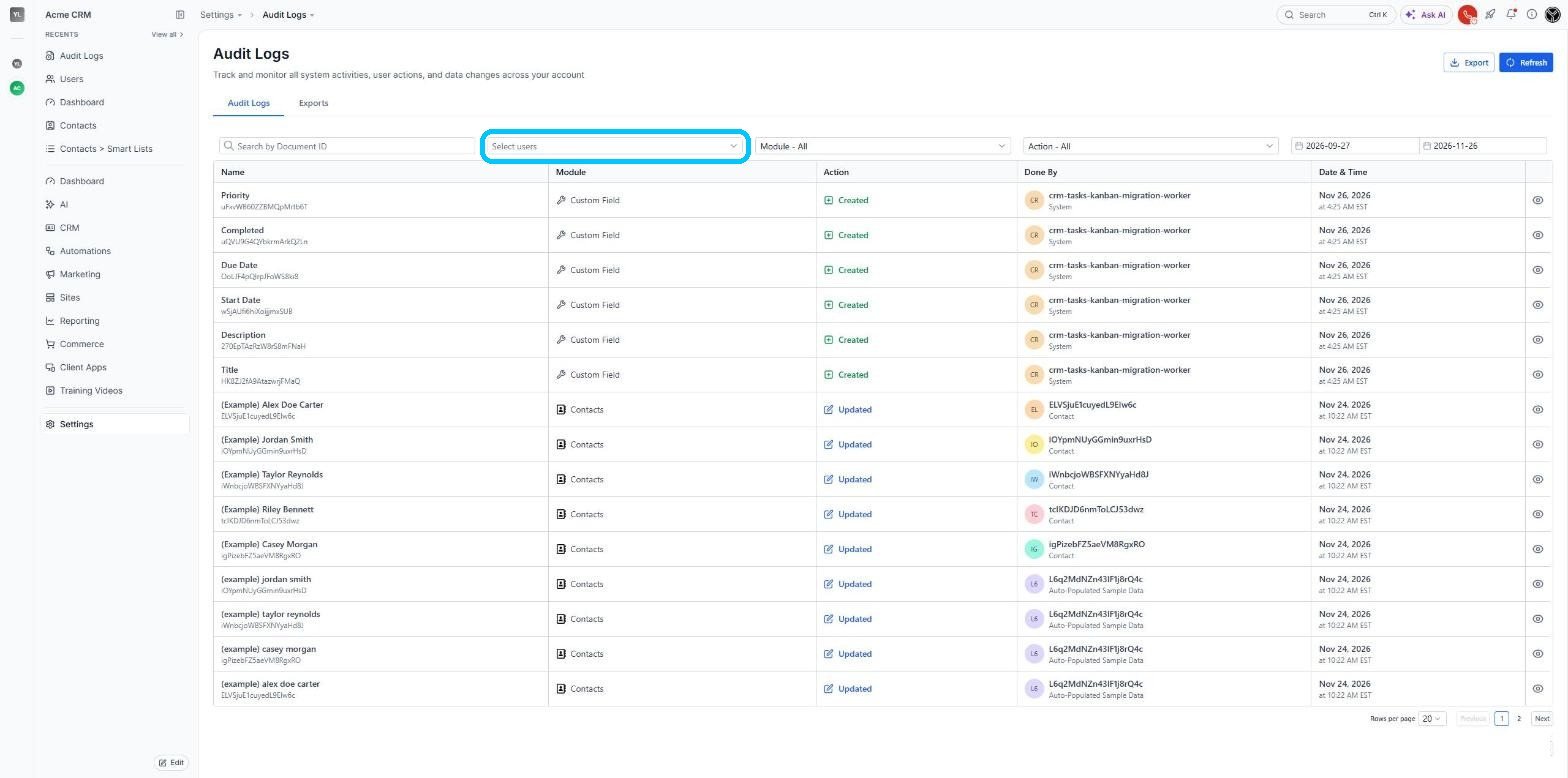
Click Select users and choose the team member whose changes you want to review.GoHighLevel › Settings › Audit LogsClick Select users to limit the log to the team member whose changes you want to review.
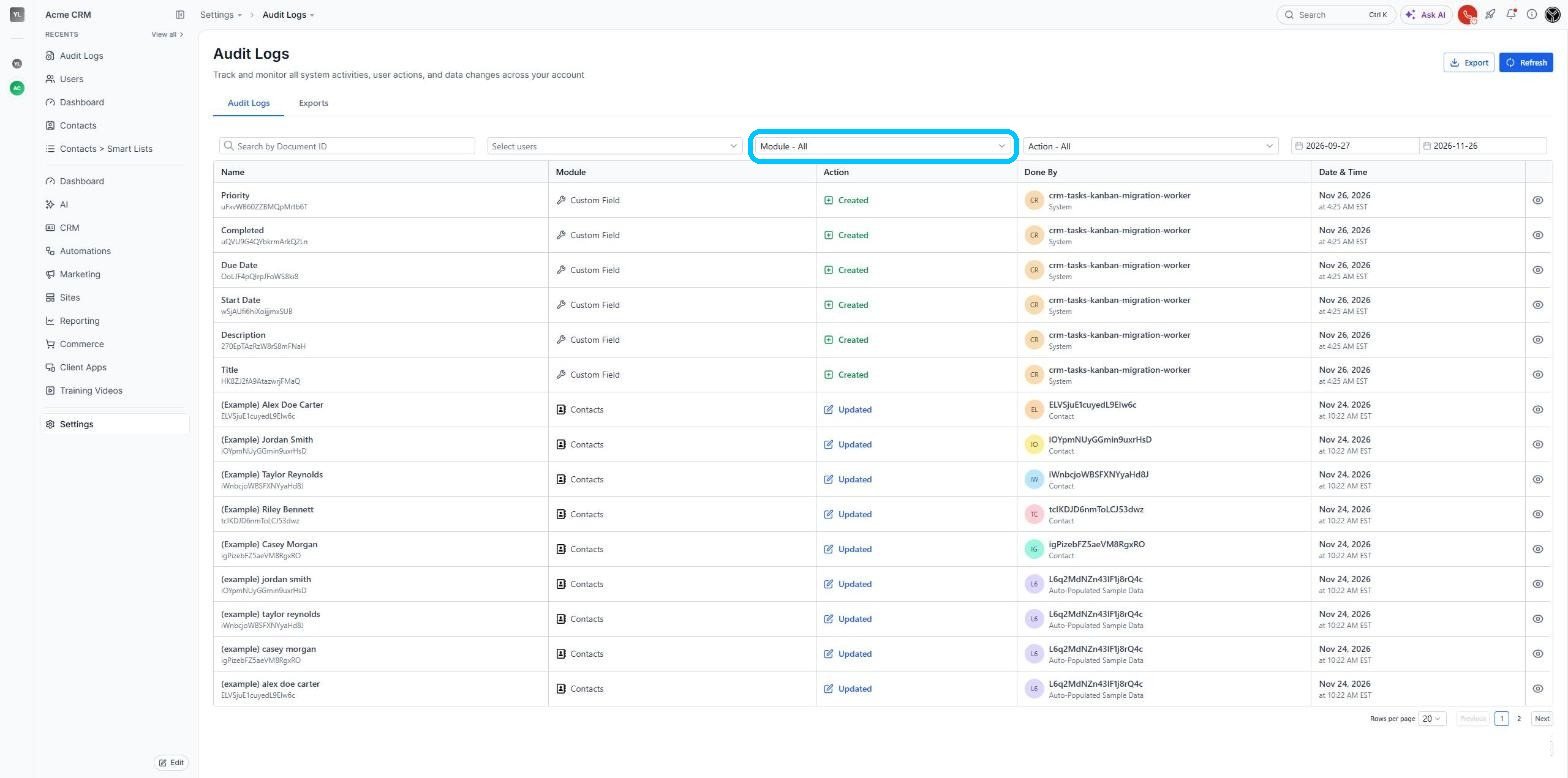
Set the Module and Action filters to narrow the list to the area you are checking.GoHighLevel › Settings › Audit LogsOpen the Module filter, currently set to All, to narrow the log to one area of the account.
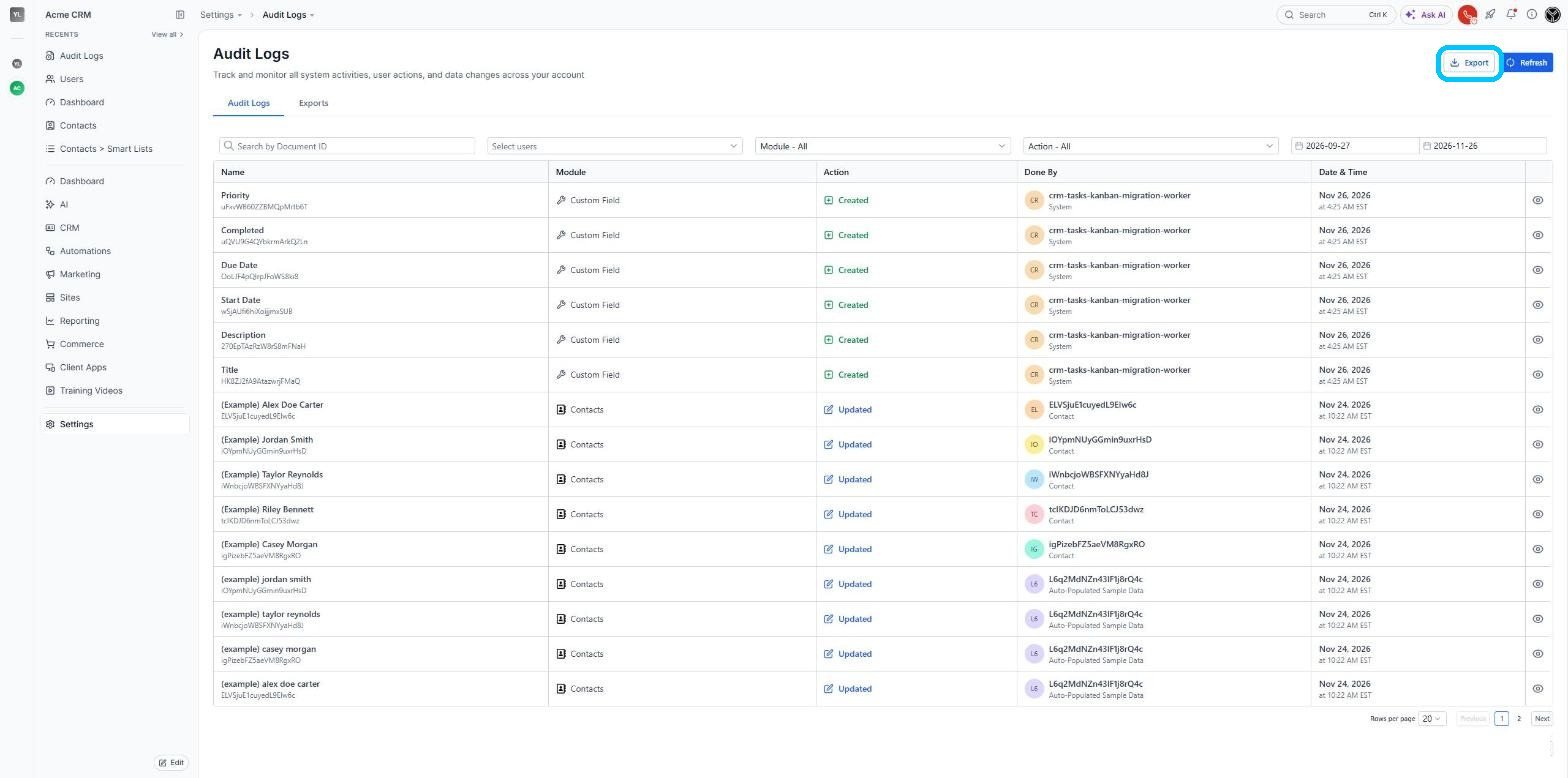
Click Export to download the filtered results for your records.GoHighLevel › Settings › Audit LogsClick Export to download the filtered log so you can keep it or share it with a client.
Who it helps
Agency operators and service business owners with more than one person logged in, especially in regulated or client-reported work.
The newsletter: one short GoHighLevel tip a day or seven every Monday, plus new articles as they publish. Written by a certified admin, not scraped from release notes.
A repeat customer who fills out your form or books again may never get your follow-up. The Allow re-entry setting decides whether a contact can go through the same workflow twice.
Agent Studio can take an exported n8n workflow, analyze it, and walk you through reviewing and setting it up, so you skip a full manual rebuild inside HighLevel.
A new sub-account can carry the wrong time zone, so set it in Settings > Business Profile first and your time-based automations run on the clock your client actually keeps.
| 1 min readRead the nugget
Want this built in your account?
Book a 30-minute call. We look at your GoHighLevel account live and tell you what we would fix first and what it would cost.